How to Control Android TV with iPhone
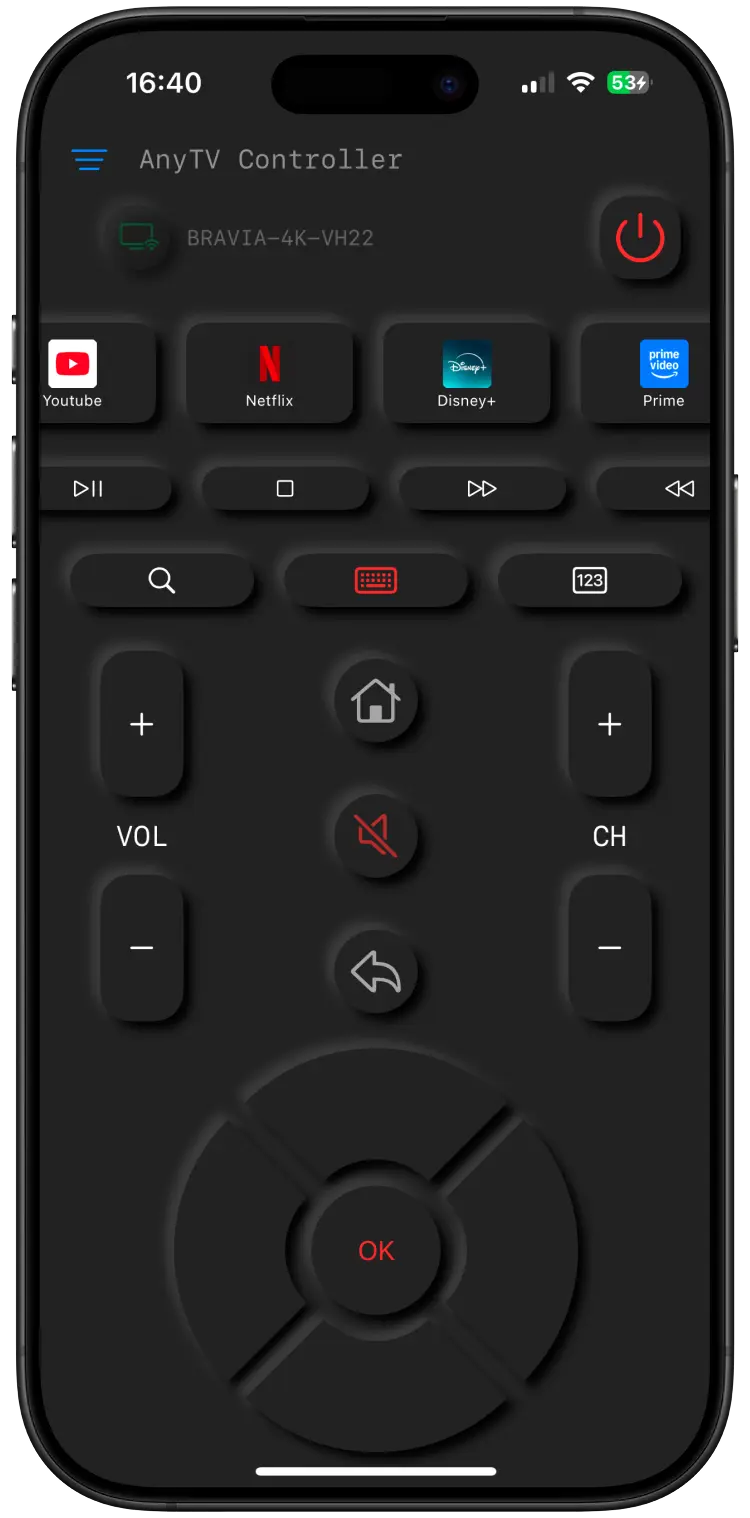
You can use your iPhone as a Wi-Fi remote for supported Android TV, Google TV and Chromecast devices. AnyTV Controller gives you familiar remote buttons plus a touchpad, keyboard and number pad for faster navigation.
 Download
What You Need
- An iPhone with AnyTV Controller installed.
- A supported Android TV, Google TV or Chromecast device.
- Both devices connected to the same Wi-Fi network.
Check the supported device catalog before setup if you are not sure whether your TV model is included.
Step-by-Step Setup
- Connect your iPhone to the same Wi-Fi network as the TV.
- Wake the TV and keep it on the home screen.
- Open AnyTV Controller on your iPhone.
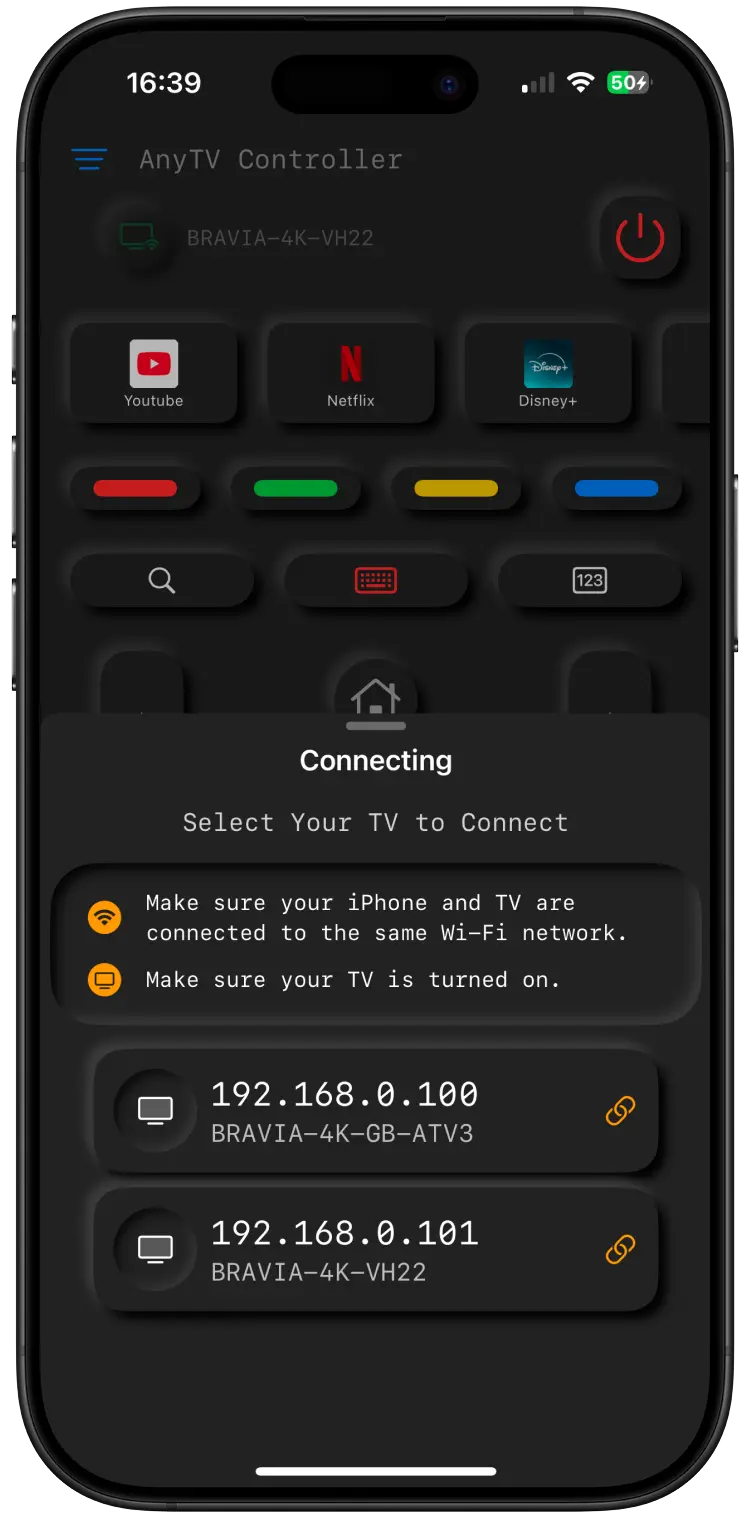
- Tap scan and wait for the TV to appear.
- Select the device and approve the pairing prompt if your TV shows one.
- Test volume, directional navigation, keyboard input and the touchpad.
Why Wi-Fi Control Is Useful
| Task | iPhone remote app | Physical remote |
|---|---|---|
| Typing search terms | Use the iPhone keyboard | Select letters one by one |
| Browsing menus | Use touchpad navigation | Directional buttons only |
| Lost remote backup | Install and pair from phone | Find or replace hardware |
| Range | Works on the same Wi-Fi network | Depends on remote technology |
Troubleshooting
If your TV does not appear:
- Confirm both devices are on the same Wi-Fi network.
- Disable VPN while scanning.
- Avoid guest Wi-Fi and router client isolation.
- Restart the TV and router.
- Confirm your model appears in supported devices.
For more detail, use the TV not found troubleshooting guide.
Frequently Asked Questions
Does this work with all smart TVs?
No. AnyTV Controller is focused on supported Android TV, Google TV and Chromecast devices. Samsung Tizen, LG webOS, Roku and Fire TV are not listed in the current supported device catalog.
Do I need an infrared transmitter?
No. The app uses Wi-Fi, so your iPhone does not need IR hardware.
Can I control the TV away from home?
No. Your iPhone and TV need to be on the same local Wi-Fi network.
Download
Download AnyTV Controller from the App Store and follow the setup steps above.